
Feature: Custom Report Templates
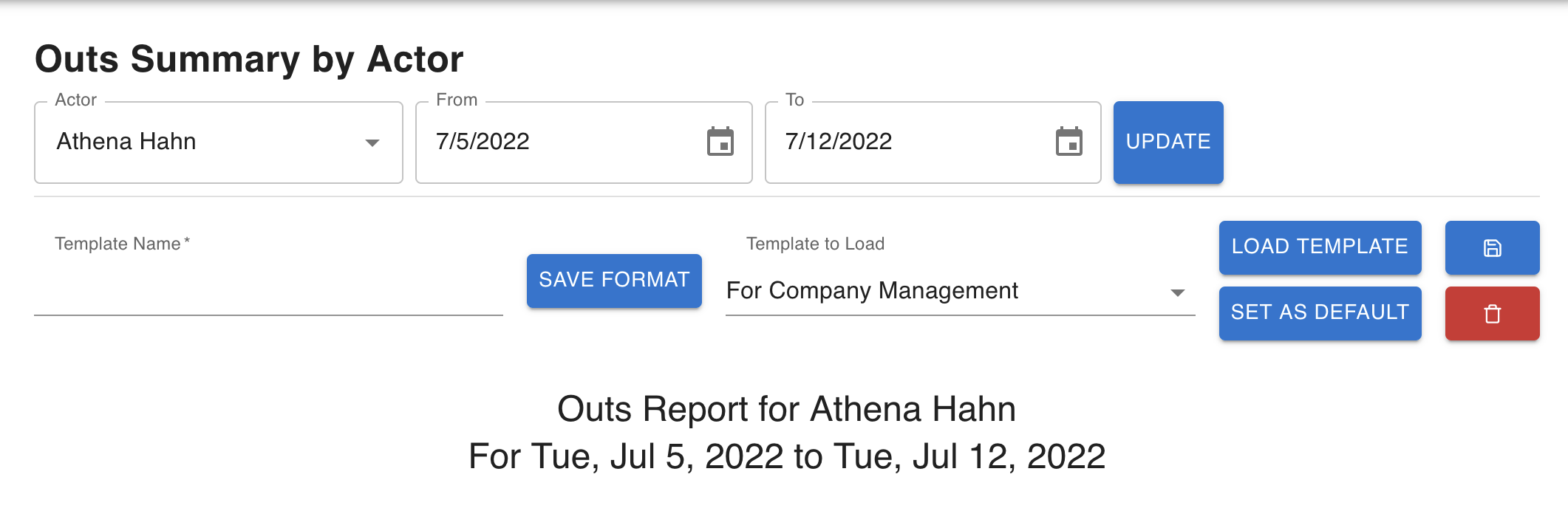
Remember the custom report template feature that we rolled out in September, but was limited to the "Outs by Actor" report only, well that custom report functionality is now available for all three payroll assist reports.
A refresher on the functionality:
How does it work?
1. First, go to the report you'd like to modify (In/Out by Department, In by Role, Out by Actor) and find the (Actor/Role/Department) and date range that has
data to display. This new feature is only triggered if there is data to display.
2.
We've also upgraded the capabilities of the data tables! For example,
you can now drag the column headers to re-order them, drag the little
bars to re-size them, pin them to the left or to the right, and
hide/show them (as before).
3. Once you've
customed the colums as you like, give the template a name and click
"Save Format". Everything you've adjusted about the columns will be
saved (order, sizing, hide/show, pinning, etc). Note that you can
re-order rows, but this will not be saved, and will only affect the
order of the rows if you Export as CSV.
4.
The next time you come back to this page, find that template name in the
drop down and click "Load Template". You'll also find one called
"Default", and loading that is the equivalent of resetting the columns.
Note that you cannot edit the "Default" template.
5. You can delete templates that you created and also mark them as default, so it'll be loaded automatically next time.
Example Use Cases
Say
you are a Broadway show, not a tour. By default, the "City" and "Venue"
columns display, which never change for you. So, you might hide those
two columns and then save a new template. Then, find that new template
in the drop down, load it, and then "Set as Default" so it'll be
automatically loaded next time.
A Quick Note
I
want to be explicit that in order to update a template, delete a
template, or mark it as default (including immediately after saving a
new template), you need to make sure it is selected in the drop down and
you've pressed "Load Template". I know this seems a bit contrived, but
its an intentional design choice to make sure the user knows exactly
which template is being operated on and that we've gotten the latest
version from the database.